HDMI vs DisplayPort: Which Connection Should You Use?
Choose the connection that fits your TV, console, gaming monitor, laptop, or multi-screen desk. Compare the actual features and limits that matter before buying a cable.
The short answer: choose for the devices and the display mode
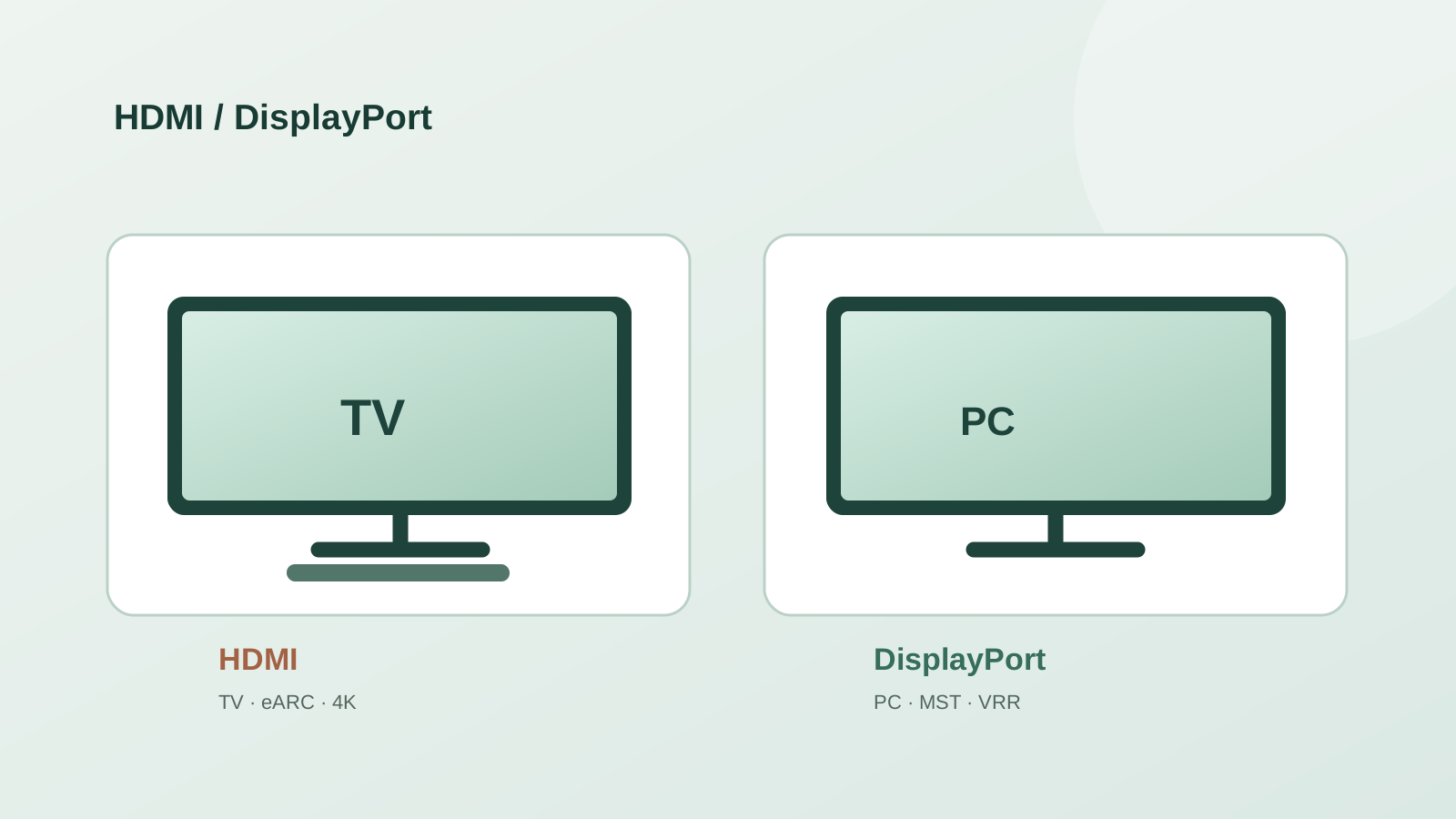
For a TV, game console, or soundbar, HDMI is usually the practical choice: those devices are built around HDMI, and HDMI eARC can return TV audio to a compatible sound system. For a desktop PC and monitor, DisplayPort is often convenient, especially if you need a supported multi-monitor setup. Neither connector is automatically sharper or faster. If both paths carry the same resolution, refresh rate, color format, and features, the connector name alone does not improve the picture.
Start with the mode you want—such as 4K at 120Hz with HDR and variable refresh rate (VRR)—then check the exact output on the source, the input on the screen, and the cable or adapter between them. The weakest part of that path determines what you can actually use.
A useful starting point, not a substitute for the device specifications
| Your setup | Start with | Verify before buying |
|---|---|---|
| TV + game console | HDMI | 4K/120Hz, VRR and HDR on the specific TV input |
| TV + soundbar or receiver | HDMI | eARC support on both ends and the correct TV port |
| Desktop PC + gaming monitor | DisplayPort or HDMI | The mode and VRR support of each actual input |
| Laptop + USB-C dock | DisplayPort over USB-C or HDMI from the dock | Laptop Alt Mode, dock bandwidth and lane sharing |
| Several monitors from one output | DisplayPort MST, if supported | GPU, hub/dock, operating system and total link bandwidth |
A monitor with both ports may support different maximum modes on each input. Read its input-specific specification.
What HDMI and DisplayPort actually do differently
Both carry digital video and audio. HDMI is widespread on TVs, consoles, streaming boxes, AV receivers, and soundbars. Its audio return features, ARC and eARC, matter when the TV sends audio back to a sound system. DisplayPort is common on graphics cards and computer monitors. Its Multi-Stream Transport (MST) can carry multiple display streams across one supported link, although the complete chain must support that arrangement.
USB-C describes the connector, not the video capability. A USB-C port can carry DisplayPort Alt Mode, but some USB-C ports do not output video at all. When a dock shares USB-C lanes with data, the display bandwidth can also change. Check the laptop and dock specifications rather than assuming every USB-C port works like a full-size DisplayPort connector.
- Soundbar or receiver: check HDMI eARC/ARC; a regular DisplayPort monitor connection does not replace the TV audio-return path.
- More than one monitor: check MST and the total bandwidth for the combined displays; an MST hub does not create extra bandwidth.
- Adapters: verify signal direction. A DisplayPort-to-HDMI adapter is not necessarily reversible, and an adapter may limit refresh rate or VRR.
Gaming: the supported mode beats the version label
A 4K 120Hz console setup calls for a console HDMI output, a TV input that accepts the target mode, and a suitable cable. Also confirm whether that exact TV input supports VRR, ALLM, and HDR. The words “HDMI 2.1” on a product page do not prove that every feature or the specification’s maximum bandwidth is implemented.
On a PC, either connector may work well. One gaming monitor might reach its highest refresh rate only over DisplayPort; another might offer the same mode over HDMI. Some high-end combinations need Display Stream Compression (DSC) or a reduced color format. If the monitor’s manual lists different modes for each input, use that table rather than a generic claim that one interface always wins.
A four-part check before you buy a cable
Write down the exact target mode: pixel resolution, refresh rate, color depth, chroma format, HDR, and VRR. A bare “4K” label leaves out most of the information that determines bandwidth. Then check all four parts of the connection:
- Source: find the GPU, console, or laptop output specification for that particular port.
- Display: find the supported signal modes for the input you will use, not just the panel’s advertised maximum.
- Middle of the chain: include the cable, adapter, switch, KVM, receiver, or dock; each can impose its own limit.
- Features: verify DSC, VRR, HDR, chroma format, and audio return separately when they matter to your setup.
Two buying examples
Example 1: You are pairing a game console with a 65-inch TV. Use the console’s HDMI output, then check which TV HDMI port accepts 4K at 120Hz and which port, if any, supports eARC for a soundbar. Those may be different ports. A suitable certified cable is useful, but it cannot add 120Hz to a 60Hz-only input.
Example 2: You are pairing a PC with a 4K 144Hz monitor through a dock. The monitor may support 144Hz over DisplayPort, yet the dock may output only 4K 60Hz because of its own link or USB-C lane allocation. Test a direct GPU-to-monitor connection or inspect the dock’s exact display-mode table before replacing the screen.
If you are still choosing the screen itself, compare its physical dimensions first, then use our resolution and refresh-rate guides to judge the picture and motion trade-off. This site can help with screen size and pixel density; it cannot certify a specific cable, dock, or GPU combination.
Sources and calculation references
- HDMI Licensing Administrator: HDMI 2.2 overview and feature guidance
HDMI capabilities, eARC, VRR, cable classes and version-label guidance; checked September 2026.
- VESA: DisplayPort FAQ
MST, USB-C interoperability, UHBR and cable guidance; checked September 2026.
- VESA: DisplayPort overview
Current DisplayPort uses and certified-product guidance; checked September 2026.
FAQ
Is DisplayPort better than HDMI for a gaming monitor?
Sometimes, but not by default. Compare the monitor’s supported modes on each input and the GPU output. If both deliver the same refresh rate, color format, VRR and HDR, either can serve the same gaming goal.
Can DisplayPort carry audio?
Yes, DisplayPort can carry audio to a compatible display. HDMI eARC is a different feature: it returns audio from a TV to a soundbar or receiver.
Will a newer cable upgrade an older port?
No. A suitable cable can preserve a supported mode, but it cannot add bandwidth or features to a source or display port that lacks them.
Related guides
Connections and display setup
HDMI Versions Explained: 1.4, 2.0, 2.1 and 2.2
Connections and display setup
DisplayPort Versions Explained: 1.2, 1.4, 2.0 and 2.1
Monitor guides
Resolution vs Refresh Rate: 4K 60Hz or 1440p 144Hz?
Monitor guides
Monitor Resolution Guide: 1080p, 1440p, and 4K Picks
Monitor guides
What GPU Do You Need for 1080p, 1440p, and 4K Gaming?
HDR guides
How Many Nits Do You Need for HDR?